
Building a website used to take weeks or months, but modern tools have changed everything. You can now build a website in 24 hours, even if you’ve never touched web development before.
This guide is perfect for small business owners launching their first online presence, entrepreneurs testing new ideas, or anyone who needs a professional website fast. You’ll learn exactly how to create a website quickly without getting overwhelmed by technical jargon or complicated processes.
We’ll walk through choosing the right website builder for your needs, then move into planning your site structure so you don’t waste time backtracking. You’ll also discover how to set up hosting and domains efficiently, plus get actionable tips for designing pages that actually convert visitors into customers.
By tomorrow, you’ll have a live website that looks professional and serves your goals.
Choose Your Website Building Method
Compare Website Builders vs. Content Management Systems
When you’re racing against the clock to build a website in 24 hours, picking the right platform makes all the difference between finishing strong or pulling an all-nighter. The two main roads ahead are website builders and content management systems (CMS), each offering distinct advantages for your fast website creation guide journey.
Website builders like Wix, Squarespace, and Weebly work like digital LEGO sets. You drag and drop elements, choose from pre-designed templates, and watch your site come together without touching a line of code. These platforms handle all the technical heavy lifting – hosting, security updates, and mobile optimization happen automatically behind the scenes. For someone following a beginner website tutorial, this approach removes most technical barriers that traditionally slow down the process.
Content management systems like WordPress, Joomla, or Drupal offer more flexibility but require additional setup steps. WordPress powers over 40% of all websites worldwide, making it the clear leader in this category. While it demands more initial configuration, it provides unlimited customization options and access to thousands of plugins and themes.
The speed factor heavily favors website builders for your 24 hour website challenge. Most builders can have you online within hours, not days. You’ll spend your time on content and design rather than troubleshooting server configurations or plugin conflicts. Squarespace users often have professional-looking sites running within 2-3 hours of starting.
WordPress sites typically need 6-12 hours for beginners to set up properly, including theme selection, plugin installation, and basic customization. However, this extra time investment pays dividends if you plan to scale your website beyond basic functionality.
| Feature | Website Builders | Content Management Systems |
|---|---|---|
| Setup Time | 1-3 hours | 6-12 hours |
| Technical Skills Required | None | Basic to intermediate |
| Customization Level | Limited but sufficient | Unlimited |
| Maintenance | Automatic | Manual updates required |
| Learning Curve | Minimal | Moderate to steep |
| Long-term Flexibility | Restricted | Highly flexible |
Website builders excel at specific site types – portfolios, small business sites, blogs, and online stores with limited products. They’re perfect for photographers showcasing work, restaurants displaying menus, or consultants establishing online presence quickly. The templates are professionally designed and mobile-responsive from day one.
CMS platforms shine when you need advanced functionality, custom integrations, or plan significant future growth. E-commerce sites with complex inventory management, membership sites, or content-heavy platforms benefit from WordPress’s extensive plugin ecosystem.
Consider your technical comfort level honestly. If terms like FTP, databases, or PHP make you nervous, website builders offer the smoother path for beginner web development. You can always migrate to more complex platforms later as your skills and needs grow.
The hosting question also differs between these approaches. Website builders include hosting in their packages – one less decision to make during your quick website setup. CMS platforms require separate hosting arrangements, adding another layer of complexity to your 24-hour timeline.
Evaluate Free vs. Paid Platform Options
The free versus paid debate significantly impacts both your immediate timeline and long-term success. Free options can get you online quickly, but they come with meaningful trade-offs that might derail your professional goals.
Free website builders like Wix Free, WordPress.com Free, or Google Sites offer basic functionality without upfront costs. You can have a simple site running within hours, making them appealing for your instant website builder needs. However, these platforms display their branding on your site, use subdomains (yoursite.wix.com instead of yoursite.com), and limit storage and bandwidth.
The subdomain issue particularly impacts professional credibility. Potential clients or customers may question your commitment to your business if you’re using free hosting. Search engines also favor custom domains, affecting your site’s visibility in search results.
Free plans typically restrict customization options, limiting template choices and removing access to premium features. You can’t install custom plugins, access advanced analytics, or modify code – restrictions that become frustrating as your site grows.
Paid plans unlock professional domains, remove platform branding, and provide expanded storage and features. Basic paid plans usually cost $5-15 monthly, while business plans range $15-30 monthly. For most serious projects, the investment pays for itself quickly through improved credibility and functionality.
| Platform Type | Free Option | Basic Paid | Business Plan |
|---|---|---|---|
| Wix | Limited templates, Wix ads | $14/month | $23/month |
| Squarespace | 14-day trial only | $12/month | $18/month |
| WordPress.com | Basic features, WP ads | $4/month | $25/month |
| Shopify | 3-day trial | $29/month | $79/month |
WordPress.org (self-hosted) represents a unique middle ground. The software is free, but you pay for hosting ($3-10 monthly) and any premium themes or plugins. This approach offers maximum flexibility while keeping costs reasonable.
Free platforms work for testing ideas, creating temporary sites, or building simple personal pages. A hobby photographer sharing work with friends doesn’t need premium features. However, anyone building a business site, portfolio for career advancement, or platform for future growth should invest in paid options from day one.
The time factor also favors paid platforms for your beginner website tutorial journey. Free options often lack phone support, comprehensive documentation, or priority assistance. When you’re working against a 24-hour deadline, having access to customer support can save hours of frustration.
Consider the hidden costs of free platforms too. You’ll likely need to upgrade for essential features like contact forms, e-commerce capability, or removal of ads. These upgrades often cost more than starting with a paid plan immediately.
Storage limitations on free plans can derail projects quickly. High-quality images, videos, or product photos consume space rapidly. Running out of storage during your final hours would be devastating to your timeline.
Free platforms also limit integration options with third-party tools like email marketing services, analytics platforms, or social media management tools. These connections become crucial as your online presence grows.
Select the Fastest Setup Solution for Beginners
Speed and simplicity must guide your platform choice when working within a 24 hour website challenge timeline. Several solutions stand out for their combination of ease-of-use and quick deployment capabilities.
Squarespace leads the pack for design-focused sites requiring minimal technical knowledge. Their templates are stunning out-of-the-box, requiring only content additions rather than extensive customization. The platform’s all-in-one approach includes hosting, security, and mobile optimization automatically. Most users have attractive sites running within 3-4 hours of starting.
Squarespace excels for creative professionals, restaurants, retail stores, and service businesses prioritizing visual appeal. The drag-and-drop editor feels intuitive, and the built-in SEO tools help with search visibility. However, customization options are more limited compared to WordPress, and the monthly costs are higher than some alternatives.
Wix offers the most beginner-friendly experience through their ADI (Artificial Design Intelligence) feature. Answer a few questions about your business, and Wix creates a complete website automatically. You can then customize the generated site using their visual editor. This approach can have you online within 1-2 hours – the fastest option available.
The Wix App Market provides extensive functionality additions, from booking systems to social media integration. Their templates cover virtually every industry and use case. However, template switching after publishing requires rebuilding your entire site, so choose carefully during initial setup.
WordPress.com (hosted version) strikes a balance between simplicity and power. The platform offers thousands of free themes and handles all technical maintenance automatically. The block editor makes content creation intuitive for beginners. You can have a basic WordPress site running within 2-3 hours.
WordPress.com works particularly well for blogs, content-heavy sites, and businesses planning significant growth. The upgrade path to more advanced features is smooth, and you maintain access to the vast WordPress ecosystem of plugins and themes.
Shopify dominates for e-commerce projects requiring quick website setup. Their templates are optimized for online selling, and the platform includes payment processing, inventory management, and shipping calculations built-in. Even complex online stores can launch within 8-12 hours.
Shopify’s app store extends functionality extensively, and their themes are mobile-optimized for shopping experiences. However, transaction fees apply unless you use Shopify Payments, and customization requires some technical knowledge.
Weebly (now part of Square) offers excellent integration with Square’s payment systems, making it ideal for businesses already using Square for in-person transactions. The editor is straightforward, and sites can be online within 2-3 hours. However, design options are more limited compared to other platforms.
Google Sites provides the most basic but fastest option for simple informational sites. If you have a Google account, you can have a site published within 30 minutes. The platform integrates seamlessly with other Google services like Drive, Calendar, and Maps. However, customization options are extremely limited, making it suitable only for basic needs.
For your beginner web development journey, consider these platform recommendations based on site type:
Portfolio/Creative Sites: Squarespace or Adobe Portfolio
Business Websites: Wix or Squarespace
Blogs/Content Sites: WordPress.com or Ghost
Online Stores: Shopify or Square Online
Simple Information Sites: Google Sites or Wix
Membership/Community Sites: WordPress.org with membership plugins
The key to success within your 24-hour timeline is choosing a platform matching both your technical comfort level and site requirements. Don’t pick WordPress if you’ve never seen a dashboard before. Don’t choose Wix if you need advanced e-commerce features.
Preparation speeds up any platform choice significantly. Gather your content, images, and business information before starting. Having everything ready lets you focus on assembly rather than content creation during your build day.
Consider starting with free trials when possible. Most premium platforms offer trial periods letting you explore their interfaces and capabilities before committing. This approach helps you avoid false starts that could derail your tight timeline.
Remember that “fastest” doesn’t always mean “best” for long-term success. While you can get online quickly with any of these platforms, consider your growth plans beyond the initial 24 hours. Choosing a platform that scales with your needs prevents costly migrations later.
The combination of realistic expectations, proper platform selection, and focused execution makes building a professional website in 24 hours entirely achievable for beginners. Your platform choice sets the foundation for everything that follows, so invest the time upfront to pick the right tool for your specific situation and timeline.
Plan Your Website Structure and Content

Define your website’s primary purpose and goals
Before you start clicking buttons or choosing templates, you need to get crystal clear on what your website is actually supposed to do. This step might seem basic, but skipping it is like trying to build a house without blueprints – you’ll end up with a confusing mess that doesn’t serve anyone well.
Start by asking yourself one simple question: “What’s the main thing I want people to do when they visit my website?” Your answer becomes your primary goal. Maybe you want them to buy your handmade jewelry, sign up for your newsletter, book a consultation call, or simply learn about your services. Pick one main goal – you can always add more later, but having a single focus makes everything else easier.
Write down your primary purpose in one clear sentence. For example: “I want visitors to understand my freelance graphic design services and contact me for project quotes.” Or: “I want people to discover my photography portfolio and book me for weddings.” Keep it simple and specific.
Next, think about your target audience. Who exactly are you trying to reach? A common mistake when building a website fast is trying to appeal to everyone, which ends up appealing to no one. Instead, picture your ideal visitor. Are they busy small business owners who need quick solutions? New parents looking for baby products? College students searching for affordable services? Understanding your audience shapes every decision you’ll make about content, design, and functionality.
Consider what problems your website solves for visitors. People don’t randomly browse websites for fun – they’re looking for answers, solutions, or entertainment. Your website should clearly communicate how you help them. If you’re a fitness coach, maybe you help people work out from home without expensive equipment. If you’re selling handmade soaps, perhaps you provide natural skincare solutions for sensitive skin.
Write down three secondary goals too. These support your main purpose but aren’t the primary focus. Maybe you want people to follow your social media accounts, read your blog posts, or share your content with friends. These secondary goals help you create a more engaging experience without losing sight of your main objective.
Think about success metrics early on. How will you know if your website is working? For an online store, it might be sales numbers. For a service business, it could be contact form submissions or phone calls. For a blog, it might be email subscribers or time spent on pages. Having clear metrics in mind helps you build your website with the right features and tracking in place.
Create a simple site map with essential pages
A site map is basically a family tree for your website pages. It shows how everything connects and ensures visitors can find what they need without getting lost. When you’re building a website in 24 hours, keeping your site map simple is crucial – you don’t have time to create a complex navigation system.
Start with the essential pages every website needs. Your homepage is obviously required – it’s like the front door of your digital house. Then you’ll typically need an About page where people can learn who you are and why they should trust you. Most websites also benefit from a Contact page with your email, phone number, or a contact form.
Beyond these basics, add only the pages that directly support your primary goal. If you’re selling products, you’ll need product pages and maybe a shop overview page. If you’re offering services, create individual pages for each main service or group similar services together. If you’re building a portfolio site, you’ll want project showcase pages or galleries.
Avoid the temptation to add pages just because other websites have them. You don’t need a blog if you’re not committed to regular posting. You don’t need a testimonials page if you don’t have testimonials yet. You can always add these later – right now, focus on the pages that matter most for your goals.
Draw your site map on paper or use a simple digital tool. Start with your homepage at the top, then branch out to your main pages underneath. Most simple websites work well with a flat structure – meaning most pages are just one click away from the homepage. This makes navigation intuitive and helps with the beginner website tutorial approach.
Consider the logical flow of how visitors might move through your site. Someone might land on your homepage, click to learn more about your services, then want to see examples of your work, and finally contact you. Make sure this path is clear and easy to follow.
Plan for mobile navigation too. On phones, complex dropdown menus and long navigation bars don’t work well. Keep your main navigation to five items or fewer. If you have more pages, consider grouping them under broader categories or moving less important pages to your footer.
Here’s a simple site map structure that works for most quick website setups:
| Homepage | About | Services/Products | Portfolio/Gallery | Contact |
|---|---|---|---|---|
| – Welcome | – Your story | – Main offerings | – Best examples | – Contact form |
| – Key benefits | – Credentials | – Pricing info | – Case studies | – Location/hours |
| – Call to action | – Why choose you | – Process/FAQ | – Client results | – Social links |
Gather existing content and images you’ll need
Content gathering is like packing for a trip – collect everything you might need before you start building, so you’re not scrambling to find things later. When you’re working on a fast website creation guide timeline, having your content ready speeds up the entire process dramatically.
Start with any text content you already have. Check your social media profiles, business cards, brochures, LinkedIn profile, or previous websites. You might have descriptions of your services, your bio, customer testimonials, or product details already written somewhere. Even if the content needs updating, having a starting point saves huge amounts of time.
Look for any existing photos or graphics you can use. Check your phone, social media accounts, previous marketing materials, or professional photos you’ve had taken. You’ll need a good headshot for your About page, images of your products or work examples, and possibly some lifestyle or background images that fit your brand.
Make a content checklist for each page you’re planning. For your homepage, you’ll typically need a compelling headline, a brief description of what you do, your main benefits or services, and a strong call-to-action. Your About page needs your story, qualifications or experience, a professional photo, and maybe a personal touch that helps people connect with you.
If you’re showcasing work or products, gather your best examples. Quality beats quantity every time, especially for a 24 hour website challenge. Choose pieces that represent different aspects of your work or different types of products. Make sure you have permission to use any client work, and consider asking for testimonials at the same time.
Create folders on your computer to organize everything. Set up folders for different types of content: text documents, photos, logos, testimonials, and any other materials. Name your files clearly so you can find them quickly when you’re building your site.
Consider what content you don’t have yet but will need. Maybe you need to write a compelling bio, take some professional photos, or get permission to use certain images. Make a list of missing content and tackle the most important items first. For a quick website setup, you can always use placeholder content initially and update it later.
Think about image requirements too. Most website builders work better with horizontal (landscape) images rather than vertical ones for headers and banners. If you’re using photos of products, make sure they’re well-lit and show the items clearly. For service businesses, lifestyle images that represent your work or industry often work better than generic stock photos.
Don’t forget about legal considerations. Make sure you have rights to use all images and content. If you’re using photos of people (even customers), you might need permission. For stock photos, keep track of licensing requirements. Many website builders include access to stock photo libraries, which can be a lifesaver for quick projects.
Write compelling headlines and basic copy
Headlines are the first thing people see, and they make or break whether someone stays on your website or clicks away. When building a website overnight, you don’t have time for extensive copywriting, but you can create effective headlines and basic copy that get the job done.
Start with your homepage headline – this is the most important piece of copy on your entire site. It should immediately tell visitors what you do and how you help them. Avoid clever wordplay or industry jargon that confuses people. Instead, be clear and direct. “I help small businesses create professional marketing materials” works better than “Unleashing creative synergy for entrepreneurial visionaries.”
Use a simple formula for effective headlines: [What you do] + [For whom] + [Key benefit]. For example: “Custom wedding photography for couples who want natural, candid moments” or “Website design for coaches who need to attract premium clients.” This formula ensures your headline covers the essential information visitors need.
Create headlines for each main page that support your overall message. Your About page headline might focus on your experience or unique approach: “15 years helping startups build their first websites” or “The designer who actually listens to your ideas.” Service pages need headlines that clearly describe what you’re offering: “Logo design that makes your business memorable” or “Personal training sessions that fit your busy schedule.”
Keep your basic copy conversational and benefit-focused. Instead of listing features, explain how those features help your visitors. Rather than saying “I use professional-grade equipment,” try “You’ll get crystal-clear photos that look amazing both online and in print.” Focus on what your visitors care about – solving their problems or achieving their goals.
Write in second person (“you” and “your”) rather than first person (“I” and “my”) whenever possible. This keeps the focus on your visitor rather than on you. Compare “I offer three different package options” with “You can choose from three different packages based on your needs and budget.” The second version feels more customer-focused.
Create clear calls-to-action for each page. These are the phrases that tell people what to do next: “Get your free quote,” “Schedule a consultation,” “Browse the portfolio,” or “Send me a message.” Make them specific and action-oriented. “Contact me” is weaker than “Get your project started today.”
Keep sentences and paragraphs short, especially for beginner web development projects. Long blocks of text intimidate visitors, particularly on mobile devices. Aim for sentences under 20 words and paragraphs under 3-4 sentences. Use bullet points and lists to break up information and make it easier to scan.
Address common questions and concerns in your copy. If people usually ask about pricing, mention your starting rates or that custom quotes are available. If they worry about timelines, mention how quickly you typically complete projects. If they’re concerned about quality, briefly mention your experience or guarantees.
Write like you’re talking to a friend who needs your help. Avoid formal business language that creates distance between you and your visitors. Instead of “We provide comprehensive solutions to facilitate your digital transformation needs,” try “We help you get your business online quickly and easily.”
Don’t try to be perfect with your first draft. For an instant website builder timeline, getting decent copy up quickly beats spending hours perfecting every word. You can always refine and improve your copy after your site launches. Focus on clarity and helpfulness over literary perfection.
Create a simple content template you can reuse across pages. Start with a clear headline, add 2-3 short paragraphs explaining the key points, include a few bullet points if relevant, and end with a call-to-action. This structure works for most pages and keeps your content consistent and scannable.
Remember that good copy answers the question “So what?” If you mention a feature or service, immediately follow up with why that matters to your visitor. “I respond to emails within 24 hours” becomes “I respond to emails within 24 hours, so your project keeps moving forward without delays.” Always connect features to benefits that your audience actually cares about.
Set Up Your Domain and Hosting
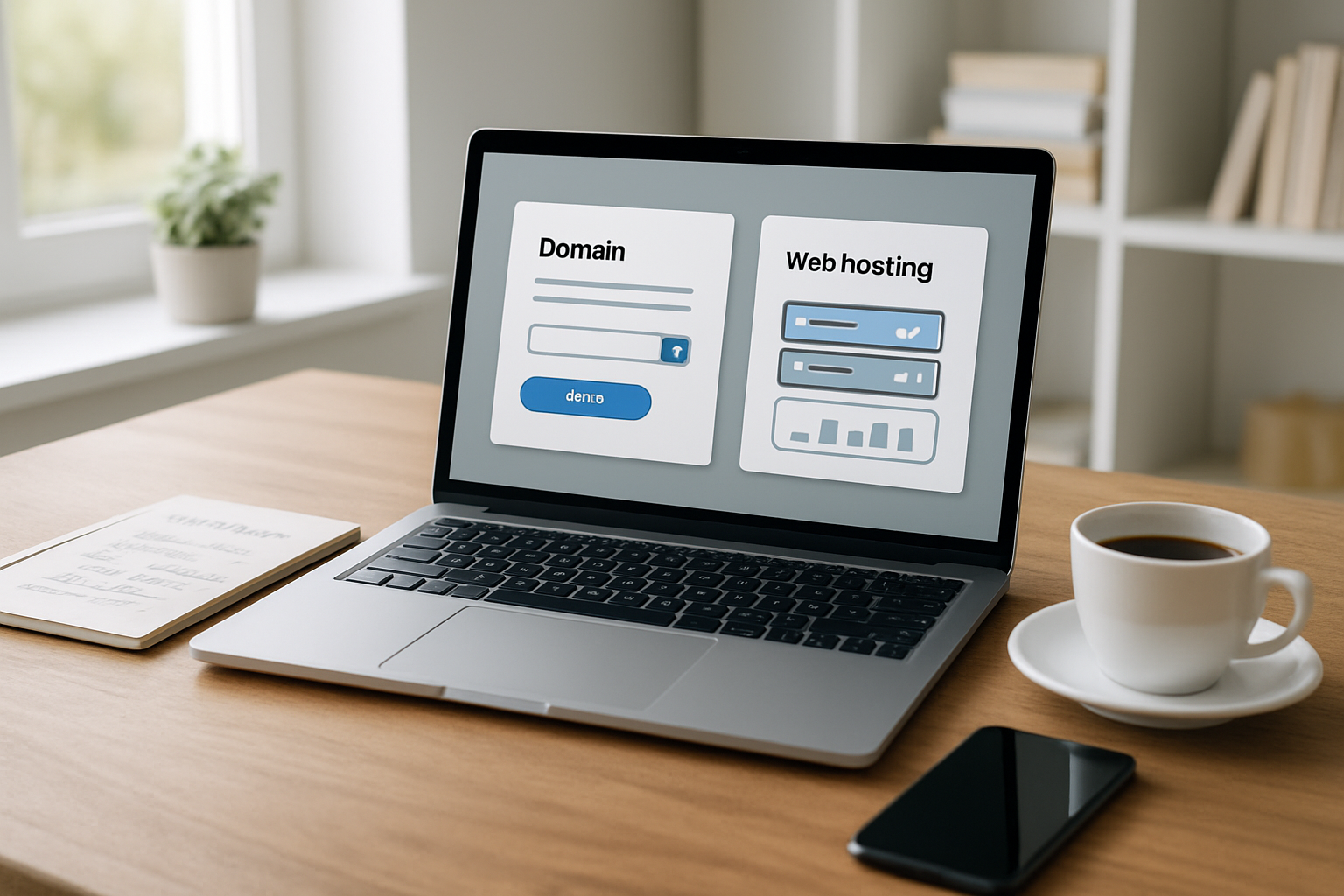
Register a memorable domain name quickly
Getting the right domain name is like picking the perfect address for your new home – it needs to be memorable, easy to find, and represent what you’re all about. When you’re racing against the clock to build a website in 24 hours, you don’t have weeks to brainstorm the perfect domain name, but you can still secure something great with the right approach.
Start by grabbing a notepad and jotting down 10-15 words that describe your website’s purpose. If you’re creating a photography portfolio, write down words like “capture,” “lens,” “focus,” “vision,” and your name. For a small business site, think about your services, location, and what makes you different. Keep these words simple and avoid industry jargon that might confuse visitors.
The golden rule for domain names is keeping them short and sweet. Aim for 15 characters or fewer if possible. Long domain names are harder to remember, more prone to typos, and look clunky on business cards. Compare “johnsmithphotographyservices.com” with “johnlens.com” – the shorter version wins every time.
Stick with .com if you can get it. While .net, .org, and newer extensions like .photography or .design might seem creative, .com is what people automatically type when they remember your website. If your perfect .com is taken, try adding a simple word like “get,” “my,” or “the” before your main keyword, or consider using your city name.
Domain availability moves fast, especially for good names. Use multiple domain registrars to check availability simultaneously. Popular options include:
- Namecheap: Often the most affordable with excellent customer service
- GoDaddy: Huge selection and frequent promotions
- Domain.com: Clean interface and competitive pricing
- Google Domains: Simple setup and integrates well with other Google services
Pro tip: Search for your domain in an incognito browser window. Some registrars track your searches and might show a domain as “suddenly unavailable” if you check it multiple times, hoping you’ll pay premium prices.
Avoid hyphens and numbers in your domain name. “best-pizza-nyc.com” is harder to share verbally than “bestpizzanyc.com,” and people often forget whether to include the hyphens. Numbers create similar confusion – is it “4” or “four”?
Check social media availability while you’re at it. Use tools like Namecheckr or KnowEm to see if your domain name is available across major social platforms. Having consistent branding across your website and social accounts makes you look more professional and helps with your beginner website tutorial journey.
If your first choice is taken, don’t panic. Try these quick alternatives:
- Add “get” before your name: getjohnsmith.com
- Use your location: johnsmithnyc.com
- Try different word combinations: johnsmithcreative.com
- Consider your initials: jsphoto.com
Register your domain for at least two years. This saves money compared to annual renewals and shows search engines you’re committed to sticking around. Many registrars offer significant discounts for multi-year registrations.
Choose beginner-friendly hosting with one-click installs
Web hosting is where your website files live, and picking the right host can make or break your 24 hour website challenge. You need a hosting provider that’s reliable, fast, and doesn’t require a computer science degree to navigate.
Shared hosting is perfect for beginners building their first website. Your site shares server resources with other websites, which keeps costs low while providing everything you need to get online quickly. You can always upgrade to more powerful hosting as your site grows.
Look for hosts that offer one-click installs for popular website platforms. These automated installers can set up WordPress, Joomla, or other content management systems in under five minutes. No manual file uploads, no database configuration – just click a button and your platform is ready to go.
Here are the top beginner-friendly hosting providers that excel at quick website setup:
| Host | Starting Price | One-Click Installs | Support Quality | Best For |
|---|---|---|---|---|
| Bluehost | $2.95/month | WordPress, 50+ apps | 24/7 chat/phone | WordPress beginners |
| SiteGround | $3.99/month | WordPress, Joomla, Drupal | Excellent 24/7 | Performance-focused |
| HostGator | $2.75/month | 75+ one-click installs | 24/7 chat/phone/email | Budget-conscious |
| DreamHost | $2.59/month | WordPress optimized | Strong email support | Privacy-focused |
| A2 Hosting | $2.99/month | 400+ applications | 24/7 guru crew | Speed enthusiasts |
Bluehost stands out for WordPress beginners. They’re officially recommended by WordPress.org and their setup process is incredibly streamlined. During signup, you can install WordPress automatically and even choose from pre-designed templates.
SiteGround offers exceptional performance and security features. Their customer support team actually knows what they’re talking about – no reading from scripts. They also provide free daily backups and excellent caching to keep your site running fast.
HostGator gives you the most bang for your buck with unlimited storage and bandwidth on their basic plans. Their control panel is intuitive, and they offer a 45-day money-back guarantee – longer than most competitors.
Key features to look for when choosing hosting:
Free SSL certificate: Essential for security and search engine rankings. Most good hosts include this automatically.
Automatic backups: Your hosting provider should create regular backups of your website without you having to remember. Daily backups are ideal.
24/7 customer support: When you’re trying to create a website fast, you need help available around the clock. Look for live chat support that responds within a few minutes.
Email accounts: Get professional email addresses that match your domain (hello@yoursite.com instead of yoursite@gmail.com).
One-click staging: Some hosts offer staging environments where you can test changes before making them live. This is incredibly valuable as you learn.
Content Delivery Network (CDN): This speeds up your website for visitors around the world. Many hosts include basic CDN services free.
Avoid hosts that seem too good to be true. If someone’s offering “unlimited everything” for $1 per month, there are hidden catches. Look for transparent pricing and read the fine print about renewal rates – many hosts offer low introductory pricing that jumps significantly after the first year.
Read recent customer reviews on independent sites like Trustpilot or WebHostingTalk. Skip the reviews on the hosting company’s own website – those are heavily curated. Pay attention to complaints about downtime, slow support response times, and surprise fees.
Consider the location of your hosting provider’s data centers. If most of your audience is in North America, choose a host with servers in the US or Canada. European audience? Look for European data centers.
Connect your domain to your hosting account
Connecting your domain to your hosting account is like giving your website its home address. This process involves updating DNS (Domain Name System) settings, which sounds technical but is actually straightforward when you break it down into simple steps.
The connection happens through name servers – these are like the internet’s phone book, telling browsers where to find your website when someone types in your domain name. Your hosting provider will give you specific name server addresses that you’ll need to enter in your domain registrar’s control panel.
If you bought your domain and hosting from the same company, this connection often happens automatically. Many hosting providers like Bluehost or SiteGround will register your domain for you during the signup process, eliminating this step entirely. If you chose this route during your beginner website tutorial journey, you can skip ahead – you’re already connected.
If you registered your domain separately, here’s the step-by-step process:
Step 1: Get your hosting provider’s name servers
Log into your hosting account and look for a welcome email or setup information. You’ll need two name server addresses that typically look like:
- ns1.yourhostingcompany.com
- ns2.yourhostingcompany.com
Can’t find them? Check these common locations:
- Welcome email from your hosting provider
- Account dashboard or control panel
- Hosting provider’s knowledge base or FAQ section
- Contact their support team – they’ll provide these instantly
Step 2: Access your domain registrar’s control panel
Log into the account where you registered your domain name. Navigate to the domain management section, which might be labeled as:
- Domain Manager
- DNS Management
- Name Server Management
- Domain Settings
Step 3: Update the name servers
Look for a section about name servers or DNS settings. You’ll see fields to enter the name server addresses you got from your hosting provider. Replace the existing name servers with your hosting provider’s name servers.
Some registrars require you to:
- Click “Edit” or “Modify” next to the domain name
- Select “Use custom name servers” instead of default ones
- Enter both name server addresses
- Save or update the changes
Step 4: Wait for propagation
DNS changes take time to spread across the internet, called propagation. This typically takes 4-48 hours, though changes often start working within a few hours. During this time, some people might see your old website (or nothing) while others see your new hosting account.
You can check propagation status using free tools like:
- whatsmydns.net
- dnschecker.org
- dns-lookup.com
Enter your domain name and select “NS” (name server) from the dropdown. These tools show you what name servers are being reported around the world.
Troubleshooting common connection issues:
Problem: Your website shows a “coming soon” or parking page instead of your content.
Solution: Check if you’ve actually uploaded website files to your hosting account or installed a platform like WordPress. A successful connection doesn’t automatically create content.
Problem: You get a “server not found” or “site can’t be reached” error.
Solution: Double-check that you entered the name servers correctly. Even small typos will break the connection. Copy and paste instead of typing manually.
Problem: Changes seem to take longer than 48 hours.
Solution: Contact your hosting provider’s support team. They can check their end and often expedite the process.
Alternative connection method: Pointing A records
If you want to keep your domain registrar’s name servers but still connect to your hosting, you can use A records instead. This method is less common but useful in specific situations:
- Get your hosting provider’s IP address (they’ll provide this)
- In your domain’s DNS settings, create or modify the A record
- Point the @ symbol (representing your root domain) to the IP address
- Add a CNAME record pointing “www” to your root domain
Verifying the connection works
Once propagation completes, test your connection:
- Visit your domain in a web browser
- Try both www.yourdomain.com and yourdomain.com
- Check from different devices and internet connections
- Clear your browser cache if you see old content
Your hosting control panel should also show the connected domain in your account dashboard. Many hosts display a green checkmark or “connected” status next to successfully linked domains.
Setting up email forwarding
While you’re handling DNS settings, consider setting up email forwarding for professional addresses like info@yourdomain.com or contact@yourdomain.com. Most hosting providers include email accounts, but you might prefer forwarding these to an existing Gmail or other email account during your initial fast website creation guide process.
The domain-to-hosting connection is a crucial step that enables everything else in your website building process. Take your time to get it right, and don’t hesitate to contact support if you hit any snags. Most hosting providers offer excellent help with this process since they want you to succeed as quickly as possible.
Install and Configure Your Chosen Platform
Complete the Initial Platform Installation
Getting your website platform up and running is where the real magic happens in your 24 hour website challenge. Most modern platforms have streamlined their installation processes to make quick website setup accessible for beginners, but knowing the right steps saves you precious hours.
For WordPress users, the installation process varies depending on your hosting provider. Many hosts offer one-click WordPress installation through their control panel. Look for options labeled “WordPress,” “One-Click Install,” or “Auto Install” in your hosting dashboard. Click it, choose your domain name, create an admin username and strong password, then hit install. The entire process typically takes 2-3 minutes.
If your host doesn’t offer one-click installation, don’t panic. Download the latest WordPress files from wordpress.org, create a MySQL database through your hosting control panel, upload the WordPress files via FTP, and run the famous 5-minute installation by visiting your domain. You’ll enter your database details, create your admin account, and you’re ready to go.
Website builders like Wix, Squarespace, or Weebly make this even simpler. Sign up for an account, verify your email, and you’re immediately taken to the platform interface. These platforms handle all technical aspects behind the scenes, making them perfect for absolute beginners who want to build website overnight without touching code.
Shopify users can start their free trial, enter their business details, and begin customizing immediately. The platform walks you through each step with helpful prompts and suggestions.
Keep your login credentials safe and easily accessible. You’ll need them frequently during your build session, and nothing kills momentum like struggling to remember passwords.
Select a Professional-Looking Theme or Template
Your theme choice dramatically impacts how quickly you can create website fast. The key is finding the sweet spot between professional appearance and customization ease. Don’t get trapped in theme browsing for hours – set a 30-minute maximum for theme selection during your fast website creation guide sprint.
WordPress offers thousands of free themes in their repository. Navigate to Appearance > Themes > Add New in your dashboard. Use filters to narrow down options by layout, features, and subject. Popular beginner-friendly themes include Astra, OceanWP, and GeneratePress. These themes are lightweight, customizable, and work well across different industries.
Premium themes from marketplaces like ThemeForest offer more sophisticated designs and features. However, they often require more time to configure properly. If you’re committed to finishing your site in 24 hours, stick with simpler options unless you already have experience with complex themes.
Website builders present their templates differently. Squarespace organizes templates by category – portfolio, business, online store, blog, etc. Browse your relevant category and look for clean, modern designs that match your industry. Wix offers a design intelligence questionnaire that suggests templates based on your answers about your website goals.
When evaluating themes, check these critical factors:
- Mobile responsiveness: Over 60% of web traffic comes from mobile devices
- Loading speed: Slow themes hurt user experience and SEO
- Regular updates: Active developers mean better security and compatibility
- Documentation quality: Good documentation saves troubleshooting time
- Demo content: Themes with demo content help you visualize the final result
Preview themes thoroughly before committing. Most platforms let you preview how your content will look within the theme structure. Pay attention to typography, color schemes, and layout flexibility. A theme that looks amazing in the demo might not work well with your specific content.
Consider your content structure when choosing themes. Blog-focused themes work differently than business or portfolio themes. E-commerce themes prioritize product display and shopping functionality. Choose a theme designed for your primary website purpose.
Configure Basic Settings and Preferences
Proper configuration transforms your installation from a generic template into a functional website. These settings form the foundation for everything you’ll build, so invest time in getting them right during your beginner website tutorial journey.
Start with general settings in WordPress by navigating to Settings > General. Update your site title and tagline – these appear in browser tabs and search results. Set your timezone, date format, and language preferences. Choose whether anyone can register accounts (usually “no” for business sites) and set your default user role.
Configure your permalink structure under Settings > Permalinks. The default setting uses question marks and numbers, which isn’t SEO-friendly. Choose “Post name” for clean, readable URLs like yoursite.com/about-us instead of yoursite.com/?p=123.
Reading settings control your homepage display and blog functionality. Decide whether your homepage shows your latest blog posts or a static page. Most business websites benefit from a static homepage with an “About,” “Services,” and “Contact” structure.
Set up your discussion settings to manage comments. Enable comment moderation to prevent spam, require user information, and decide whether to allow trackbacks and pingbacks from other websites.
Website builders handle many settings automatically but still offer customization options. In Squarespace, access Design > Site Styles to adjust fonts, colors, and spacing. Wix provides site-wide settings through the dashboard where you can modify SEO settings, social media connections, and business information.
Configure your site’s SEO foundation immediately. Add your business name, description, and contact information consistently across all platform settings. Upload your logo and favicon (the small icon that appears in browser tabs). These elements reinforce your brand identity and improve professional appearance.
Set up Google Analytics and Google Search Console during initial configuration. These tools provide valuable insights into your website performance and visitor behavior. Most platforms offer easy integration options or plugins that handle the technical setup automatically.
Privacy and security settings deserve attention even during rapid builds. Enable automatic updates where possible, choose strong passwords, and configure basic security measures like limiting login attempts.
Set Up Essential Plugins or Extensions
Plugins extend your platform’s functionality without requiring custom development. However, plugin overload can slow your site and complicate maintenance. Focus on essential functionality during your beginner web development sprint, then add specialized plugins later.
WordPress users should start with these core plugins:
Yoast SEO handles technical SEO optimization, meta descriptions, and content analysis. It guides you through optimizing each page and post for search engines. The free version covers everything most websites need.
Akismet protects against comment spam automatically. WordPress includes it with new installations, but you need to activate it and get a free API key from Akismet.com.
UpdraftPlus creates automatic backups of your entire website. Schedule daily backups to cloud storage services like Google Drive or Dropbox. Backups are crucial insurance for your hard work.
WP Rocket or similar caching plugins dramatically improve site speed by creating static versions of your pages. Faster loading times improve user experience and search engine rankings.
Contact Form 7 enables custom contact forms without coding. Most websites need at least one contact form, and this plugin offers flexibility and customization options.
Security plugins like Wordfence or Sucuri Security add protection layers against hacking attempts, malware, and vulnerabilities. They monitor your site 24/7 and alert you to potential issues.
For e-commerce functionality, WooCommerce transforms WordPress into a complete online store. It handles products, inventory, payments, shipping, and customer accounts.
Website builders typically include these features natively or through their app marketplaces. Wix App Market offers hundreds of additions for booking systems, social media integration, email marketing, and more. Squarespace Extensions provide similar functionality with seamless integration.
Shopify’s App Store contains thousands of specialized e-commerce tools. Start with free apps for essential functions like email marketing (Mailchimp), customer reviews (Product Reviews), and analytics (Google Analytics).
Install plugins strategically during your instant website builder session. Read reviews and check compatibility before installing. Activate plugins one at a time and test your site functionality after each addition. This approach helps identify potential conflicts quickly.
Configure each plugin immediately after installation. Default settings rarely match your specific needs. Spend time understanding key settings for critical plugins like SEO and security tools.
Keep plugin numbers reasonable. Every additional plugin adds potential security vulnerabilities, compatibility issues, and performance overhead. Aim for 10-15 essential plugins maximum on WordPress sites.
Update all plugins to their latest versions during installation. Outdated plugins create security risks and compatibility problems. Enable automatic updates for trusted plugins to maintain security without manual intervention.
Document your plugin choices and settings. Create a simple list of installed plugins, their purposes, and important configuration notes. This documentation proves invaluable for troubleshooting and future maintenance.
Plugin conflicts can derail your 24-hour timeline. If your site breaks after installing a plugin, deactivate it immediately through your hosting file manager or database. Most issues resolve quickly once the problematic plugin is disabled.
Test your website thoroughly after completing plugin installation and configuration. Check page loading speed, form functionality, mobile responsiveness, and user navigation. Address any issues before moving to the design phase.
The goal during this configuration phase is creating a stable, secure, and functional foundation for your website. Resist the urge to install every interesting plugin you discover. Focus on essential functionality that supports your website’s primary purpose and user experience goals.
Design Your Website Pages
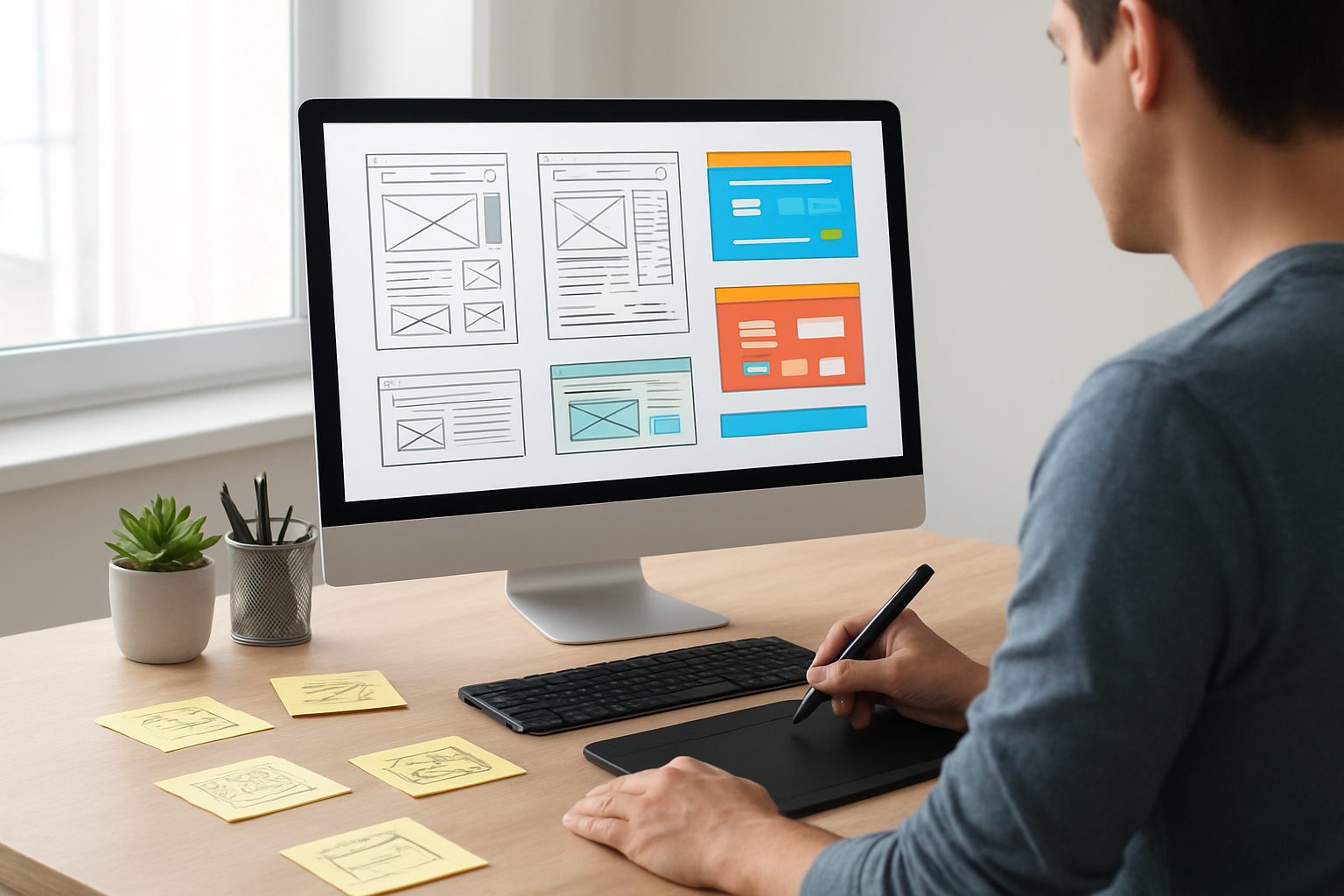
Customize your homepage for maximum impact
Your homepage sets the tone for your entire website and serves as the digital storefront for your brand. When visitors land on your site, they’ll form an opinion within seconds, so making this page count becomes absolutely critical for your quick website setup success.
Start with a compelling hero section that immediately communicates what you do and why visitors should care. This area should feature a clear headline that speaks directly to your target audience’s needs or pain points. For instance, if you’re creating a photography portfolio, your headline might read “Capturing Life’s Beautiful Moments” rather than simply “Photography Services.” The hero section should also include a strong call-to-action button that guides visitors toward their next step, whether that’s viewing your portfolio, contacting you, or making a purchase.
Your homepage navigation menu deserves careful attention during this beginner website tutorial phase. Keep it simple with 5-7 main menu items maximum. Include essentials like About, Services, Portfolio or Products, Blog, and Contact. Avoid industry jargon that might confuse visitors – use language your audience naturally uses when searching for solutions like yours.
Social proof plays a huge role in building trust quickly. Add testimonials, client logos, or review badges prominently on your homepage. If you’re just starting out and don’t have testimonials yet, consider adding trust signals like security badges, professional association memberships, or media mentions if applicable.
The color scheme and fonts you choose should align with your brand personality while maintaining excellent readability. Most modern website builders offer pre-designed color palettes that work well together. Stick to 2-3 main colors throughout your site to maintain visual consistency. For fonts, pair a distinctive header font with a highly readable body text font.
Your homepage should tell a story that guides visitors through a logical flow. After the hero section, consider adding sections that highlight your unique value proposition, showcase your best work or most popular products, share a brief “about” snippet that builds connection, and end with another clear call-to-action.
Loading speed matters enormously for homepage success. Keep your hero image under 1MB, use compressed images throughout, and avoid embedding multiple videos that auto-play. Most website builders automatically optimize images, but double-checking file sizes prevents future headaches.
Create essential pages using pre-built templates
Pre-built templates become your secret weapon for fast website creation guide success. Modern website builders offer hundreds of professionally designed templates that handle the heavy lifting of layout, spacing, and design harmony. The key lies in selecting templates that match your industry and customizing them strategically rather than starting from scratch.
Your About page template should tell your story in a way that builds trust and connection. Look for templates that include sections for your background, mission or values, team members if applicable, and another call-to-action. Many templates include placeholder content that helps guide your writing – use these suggestions as starting points rather than copying them verbatim.
For service-based businesses, choose service page templates that clearly outline what you offer, how you work, pricing if appropriate, and next steps for potential clients. Product-based businesses need templates that showcase products effectively with high-quality images, detailed descriptions, and easy purchasing options.
Contact page templates should make it incredibly easy for visitors to reach you. Look for templates that include multiple contact methods – contact forms, phone numbers, email addresses, and physical addresses if relevant. Many templates include embedded maps, which add professionalism and help with local SEO.
Blog page templates help establish you as an expert in your field while improving your site’s search engine visibility. Choose templates that display your posts clearly with featured images, publish dates, and easy navigation between articles. Even if you don’t plan to blog immediately, having this page structure in place makes future content addition seamless.
Portfolio or gallery templates showcase your work effectively through various layout options – grid displays, carousel formats, or masonry layouts. Select templates that highlight your best work prominently while maintaining fast loading speeds.
When customizing templates, maintain consistency across all pages. Use the same fonts, colors, and styling elements throughout your site. Most templates come with built-in style guides, but you can adjust colors and fonts to match your brand while keeping the overall design integrity intact.
Template customization becomes much easier when you understand the builder’s editing interface. Spend time exploring how to change text, swap images, adjust colors, and modify layouts before diving into extensive customization. This exploration prevents frustration and speeds up your overall build website in 24 hours timeline.
Add your content and optimize page layouts
Content creation and layout optimization work hand-in-hand during your beginner web development journey. Strong content presented in an optimal layout converts visitors into customers, subscribers, or engaged users far more effectively than great content with poor presentation.
Start by gathering all your content materials before diving into layout work. This includes your written copy, images, videos, contact information, testimonials, and any other elements you want to include. Having everything ready prevents constant stopping and starting during the design process.
Write your copy with web readers in mind. Online readers scan rather than read every word, so break up large paragraphs into smaller chunks, use bullet points liberally, and include descriptive subheadings that help visitors find information quickly. Your content should answer the questions your target audience asks most frequently.
Page layout optimization begins with understanding visual hierarchy. Your most important information should appear “above the fold” – the area visitors see without scrolling. Place your primary call-to-action buttons in prominent positions, typically in the upper right corner or center of sections.
White space (empty space around elements) dramatically improves readability and gives your content room to breathe. Don’t feel pressured to fill every inch of your pages with content. Strategic white space draws attention to important elements and makes your site feel professional rather than cluttered.
Mobile layout optimization deserves special attention since many visitors will view your site on smartphones or tablets. Most modern templates automatically adapt to different screen sizes, but preview your pages on various devices to ensure everything looks good and functions properly. Text should remain readable without zooming, buttons should be easy to tap, and images should display clearly.
Content organization follows the “inverted pyramid” journalism principle – put the most important information first, followed by supporting details. Visitors often leave websites quickly, so front-load your pages with compelling reasons to stay and explore further.
Call-to-action placement and wording significantly impact your site’s effectiveness. Use action-oriented language like “Download Your Free Guide,” “Schedule Your Consultation,” or “Shop Now” rather than generic phrases like “Click Here” or “Learn More.” Place these buttons where they feel natural in the content flow rather than randomly throughout pages.
Upload and optimize images for fast loading
Image optimization directly impacts your site’s loading speed, search engine rankings, and user experience. Proper image handling becomes especially critical during a 24 hour website challenge when you need everything working smoothly from launch day.
Image file formats each serve different purposes and affect loading speeds differently. JPEG works best for photographs and complex images with many colors. PNG handles graphics with transparent backgrounds or simple images with few colors. WebP, supported by most modern browsers, offers better compression than both JPEG and PNG, resulting in smaller file sizes without quality loss.
Image compression reduces file sizes while maintaining visual quality. Many free online tools compress images effectively – TinyPNG, Compress JPEG, and Optimizilla all offer excellent compression without requiring software downloads. Aim for images under 1MB for regular photos and under 500KB for smaller graphics or icons.
Proper image dimensions prevent unnecessary bandwidth usage and improve loading speeds. Upload images at the exact size they’ll display on your website rather than uploading huge files and letting the website builder resize them. For example, if your template displays images at 800 pixels wide, upload 800-pixel-wide images rather than 3000-pixel originals.
Alt text serves dual purposes – helping visually impaired users understand image content and improving search engine optimization. Write descriptive alt text that explains what appears in each image. Instead of “image1.jpg,” use descriptions like “red brick restaurant exterior with outdoor seating” or “team meeting in modern conference room.”
Image naming follows similar principles to alt text. Use descriptive filenames that include relevant keywords when appropriate. “professional-headshot-john-smith.jpg” works better than “IMG_1234.jpg” for both organization and SEO purposes.
Loading optimization techniques include lazy loading, where images only load when visitors scroll to them, and progressive loading, where low-quality versions appear first and sharp versions replace them as they load completely. Most modern website builders include these features automatically, but verify they’re enabled.
Copyright considerations become crucial when sourcing images for your site. Stock photo websites like Unsplash, Pexels, and Pixabay offer free images, while premium options include Shutterstock, Adobe Stock, and Getty Images. Always verify licensing requirements and give proper attribution when required.
Image placement throughout your pages should support your content rather than distract from it. Use images to break up long text sections, illustrate key points, and add visual interest. Hero images should be high-quality and relevant to your business, while supporting images can include behind-the-scenes photos, product shots, or team pictures that build personal connection.
Responsive image techniques ensure your visuals look great on all devices. Many website builders automatically create multiple image sizes for different screen types, but preview your site on various devices to confirm images display properly. Mobile users should see crisp, appropriately sized images that don’t slow down their browsing experience.
Regular image auditing helps maintain optimal site performance over time. Periodically review your images for opportunities to compress further, update outdated photos, or remove unused files that might slow down your site. This maintenance keeps your instant website builder creation performing at its best long after your initial 24-hour build session.
Test and Launch Your Website

Check all links and page functionality
Before you make your website live, you need to become your own quality control team. Think of this step as taking your car for a test drive before hitting the highway – you want to catch any issues while you’re still in the garage.
Start by opening your website in multiple browser tabs and systematically click every single link on every page. Yes, every single one. This includes navigation menus, buttons, internal links between pages, and any external links you’ve added. When testing internal links, make sure they actually take you to the right pages and that those pages load correctly. External links should open in new tabs (if that’s how you set them up) and lead to working websites.
Pay special attention to your contact forms if you’ve added any. Fill them out completely and submit test messages to see if they actually reach your email inbox. Many beginners forget this crucial step and later discover their contact forms were sending messages into the digital void. Test any other interactive elements too – dropdown menus, image galleries, video players, or social media buttons.
Check that all your images are displaying properly. Look for broken image icons or images that seem stretched, pixelated, or poorly positioned. Sometimes images that looked perfect in your website builder’s preview mode appear differently once the site is published.
Don’t forget about your website’s search functionality if you’ve added a search bar. Try searching for content you know exists on your site to make sure the feature works as expected.
Create a simple checklist as you go through each page:
- All navigation links work correctly
- Internal page links function properly
- External links open and work as intended
- Images display correctly and aren’t broken
- Contact forms submit successfully
- Interactive elements respond appropriately
- No obvious spelling or grammar errors
- Content displays as intended
This systematic approach helps you catch problems that could frustrate visitors and hurt your website’s credibility. Remember, first impressions matter enormously online, and a broken link or malfunctioning form could send potential customers straight to your competitors.
Test your website on mobile devices
Your desktop version might look amazing, but here’s the reality: more people browse websites on their phones than on computers. Mobile testing isn’t optional anymore – it’s absolutely essential for anyone looking to build website in 24 hours successfully.
Pull out your smartphone and tablet, or borrow devices from family members if you can. Load your website on these devices and navigate through every page just like you did on desktop. The experience should feel smooth and intuitive, not like you’re trying to use a desktop website that got shrunk down.
Pay attention to how text appears on smaller screens. Is it readable without zooming in? Are your headings appropriately sized? Sometimes text that looks perfect on a 24-inch monitor becomes tiny and illegible on a phone screen. Your website building platform should handle most of this automatically, but issues can still slip through.
Check how your navigation menu behaves on mobile devices. Many modern websites use “hamburger menus” (those three horizontal lines) that expand when tapped. Make sure yours works smoothly and that all menu items are easily accessible.
Test your buttons and clickable elements. They should be large enough to tap easily with a finger – nobody wants to play a precision game just to click a button. If you’re having trouble tapping buttons accurately, your visitors will too.
Images need special attention on mobile devices. They should resize appropriately without becoming distorted or taking forever to load. Large, unoptimized images can make your site painfully slow on mobile connections.
Forms deserve extra scrutiny on mobile devices. Filling out forms on phones can be tricky, so make sure your input fields are appropriately sized and that the keyboard appears correctly when users tap into text boxes.
Use your phone’s browser to test different orientations too. Rotate your device between portrait and landscape modes to see how your website adapts. Some layouts that work perfectly in portrait mode can look broken or awkward in landscape orientation.
If you don’t have access to multiple devices, most web browsers offer mobile simulation tools. In Google Chrome, press F12 to open developer tools, then click the device toolbar icon to simulate different screen sizes and devices. While not perfect substitutes for real devices, these tools can help you spot obvious mobile compatibility issues.
Optimize loading speed and performance
Speed matters more than you might realize. Studies show that visitors start abandoning websites if they don’t load within three seconds. For a beginner website tutorial to be complete, addressing performance is non-negotiable.
Start with image optimization, which often provides the biggest performance boost with the least effort. Large, uncompressed images are usually the main culprits behind slow websites. Most website builders automatically compress images when you upload them, but you can do even better by preparing your images before uploading.
Before uploading photos, resize them to the dimensions you’ll actually use on your website. Don’t upload a 4000×3000 pixel image if you’re only going to display it at 800×600 pixels. Use free online tools like TinyPNG or Squoosh to compress your images without losing noticeable quality.
Choose the right image formats for different situations. JPEG works best for photographs and complex images with many colors. PNG is better for graphics with few colors, logos, or images that need transparent backgrounds. WebP is a newer format that provides excellent compression, but not all browsers support it yet.
Review your website’s plugins and add-ons if you’re using a platform like WordPress. Each plugin adds code that needs to load, and too many plugins can significantly slow down your site. Remove any plugins you’re not actively using, and research whether the ones you keep are known for good performance.
Consider your font choices carefully. Custom fonts need to download before they can display, which adds loading time. If you’re using multiple font families or weights, each one requires a separate download. Stick to one or two font families maximum, and only load the specific weights you actually use.
Minimize the number of external resources your website loads. Every third-party widget, social media feed, or analytics script adds loading time. While some of these are valuable, be selective about what you include, especially during your quick website setup phase.
Use your browser’s developer tools to identify performance bottlenecks. In Chrome, open DevTools (F12), go to the Network tab, and reload your page. You’ll see exactly which resources are taking the longest to load and can prioritize fixing the biggest problems first.
Test your website speed using free online tools like Google PageSpeed Insights, GTmetrix, or Pingdom. These tools provide specific suggestions for improving your site’s performance and show you how your site compares to others.
Most modern website builders handle basic performance optimization automatically, but understanding these principles helps you make better decisions about content and design choices that could impact loading times.
Make your website live and accessible
The moment you’ve been working toward has arrived – time to make your website accessible to the world. The exact process depends on your chosen platform, but the general principles remain consistent across different website building methods.
If you’re using a website builder like Wix, Squarespace, or Weebly, making your site live usually involves clicking a “Publish” or “Go Live” button in your editor. These platforms handle the technical aspects of making your website accessible on the internet automatically.
For WordPress or other content management systems, the process might involve a few more steps. You’ll need to ensure your domain name is properly connected to your hosting account and that your website files are in the correct directory on your server.
Before hitting that publish button, double-check your domain name settings. Make sure your website loads correctly when people type in your domain name. Test both the “www” version (www.yoursite.com) and the non-www version (yoursite.com) to ensure both work properly. Most hosting providers and website builders automatically redirect one to the other, but it’s worth verifying.
Set up Google Analytics and Google Search Console accounts if you haven’t already. Google Analytics helps you understand how visitors find and use your website, while Search Console helps Google index your site in search results. Both tools are free and provide valuable insights as your website grows.
Add your website to your social media profiles and email signatures. Update your business cards, marketing materials, and anywhere else you want people to find your new website.
Create a simple launch checklist to make sure everything is working properly:
- Website loads correctly at your domain name
- All pages are accessible and display properly
- Contact forms send emails to the right address
- Social media links work correctly
- Google Analytics tracking is active
- Mobile version functions properly
- Basic SEO elements are in place (page titles, descriptions)
Consider doing a soft launch first – share your website with a few friends or family members before announcing it publicly. They can help you spot any last-minute issues you might have missed and provide feedback on the user experience.
Don’t expect perfection from your first launch. Even professional web developers rarely get everything perfect on the first try. The beauty of modern websites is that you can easily make updates and improvements after launch. Focus on getting a solid, functional website live rather than waiting for absolute perfection.
Once your website is live, test it one more time from a different internet connection if possible. Visit a coffee shop or use your phone’s mobile data to access your site and make sure it loads properly for users outside your home network.
Remember that making your website live isn’t the end of your journey – it’s really just the beginning. Your website will evolve and improve over time as you learn more about your audience and refine your content and design. The most important thing is getting started and having a professional online presence that you can build upon.
Keep your login credentials and important account information organized and secure. You’ll need these for future updates and maintenance, so store them somewhere safe but accessible. Consider using a password manager to keep track of all your website-related accounts and passwords.
Essential Post-Launch Tasks

Set up basic SEO elements
Your 24 hour website challenge doesn’t end when your site goes live. Getting your website found by search engines requires some essential groundwork that takes just minutes to implement but pays dividends for months to come.
Title Tags and Meta Descriptions
Every page on your website needs a unique title tag and meta description. Think of these as your website’s elevator pitch to Google and potential visitors. Your title tag appears as the clickable headline in search results, while the meta description provides a brief summary below it.
For your homepage, craft a title tag that includes your main keyword naturally. If you’re a local bakery, something like “Fresh Artisan Breads & Pastries – Downtown Bakery” works better than stuffing keywords unnaturally. Keep it under 60 characters to avoid getting cut off in search results.
Meta descriptions should stay under 155 characters and give people a compelling reason to click. Don’t just repeat your title tag – expand on what makes your business special. “Family-owned bakery serving handcrafted sourdough, croissants, and custom cakes since 1995” tells a story and creates trust.
Most website builders make adding these elements straightforward. In WordPress, plugins like Yoast SEO provide simple forms for each page. Squarespace and Wix have built-in SEO sections in their page editors. Shopify includes these fields in the search engine listing preview for each product and page.
Header Tags Structure
Search engines use your page headings (H1, H2, H3, etc.) to understand your content hierarchy. Your main page title should be an H1 tag – use only one per page. Section headings become H2 tags, with subsections as H3, and so on.
This structure helps both search engines and visitors navigate your content. A service page might look like this:
- H1: “Professional Web Design Services”
- H2: “Custom Website Development”
- H3: “E-commerce Solutions”
- H3: “Mobile-Responsive Design”
- H2: “Our Design Process”
- H3: “Discovery and Planning”
Image Optimization
Every image on your website needs an alt text description. This serves two purposes: helping visually impaired users understand your images and giving search engines context about your visual content. Instead of generic descriptions like “image1.jpg,” write meaningful alternatives like “chocolate chip cookies cooling on wire rack.”
File names matter too. Rename your images before uploading them. “fresh-baked-sourdough-bread.jpg” tells search engines more than “DSC_0847.jpg.”
Internal Linking Strategy
Connect your pages together with internal links using descriptive anchor text. Instead of “click here” or “read more,” use phrases that describe the destination page. Link “our wedding cake gallery” to your portfolio page or “contact our design team” to your contact form.
This helps search engines understand your site structure and keeps visitors engaged longer. Aim for 2-3 internal links per page, focusing on your most important pages.
URL Structure
Clean, descriptive URLs perform better than random strings of numbers and letters. Most website builders let you customize these. Change “/page-1” to “/about-us” or “/product-234” to “/handmade-ceramic-mugs.”
Keep URLs short, use hyphens instead of underscores, and include your target keyword when it makes sense naturally.
Install analytics tracking
Google Analytics 4 Setup
Google Analytics gives you detailed insights into how people find and use your website. Setting it up takes about 10 minutes but provides months of valuable data about your visitors’ behavior.
Create a free Google Analytics account at analytics.google.com. You’ll need a Google account, which you might already have from Gmail or other Google services. Click “Start measuring” and follow the setup wizard.
Choose “Web” as your platform and enter your website details. Google will generate a tracking code – a small snippet of JavaScript that needs to be added to every page of your website.
Installing the Tracking Code
The installation method depends on your website platform:
WordPress: Install the “Site Kit by Google” plugin, which connects multiple Google tools including Analytics. Alternatively, add the tracking code to your theme’s header.php file or use a plugin like “Insert Headers and Footers.”
Squarespace: Go to Settings > Advanced > Code Injection and paste the tracking code in the header section.
Wix: Access your site’s dashboard, go to Marketing & SEO > Marketing Integrations > Google Analytics, and follow the connection wizard.
Shopify: Navigate to Online Store > Themes > Actions > Edit Code, then paste the tracking code in the theme.liquid file before the closing head tag.
Webflow: Go to Project Settings > Integrations > Google Analytics and enter your tracking ID.
Verifying Installation
After installing the code, verify it’s working correctly. Google Analytics shows real-time data, so visit your website in a private browser window and check if your visit appears in the Real-Time reports within your Analytics dashboard.
The Chrome extension “Google Analytics Debugger” helps troubleshoot installation issues by showing detailed information about tracking code execution in your browser’s console.
Key Metrics to Monitor
Focus on these essential metrics during your first few weeks:
Users vs. Sessions: Users represent unique individuals, while sessions count individual visits. One user might have multiple sessions.
Page Views: Shows which content resonates with your audience. High page view counts indicate popular content worth expanding.
Bounce Rate: The percentage of visitors who leave after viewing only one page. Rates above 70% might indicate content or design issues.
Average Session Duration: How long people spend on your site. Longer sessions usually indicate higher engagement.
Traffic Sources: Whether visitors come from search engines, social media, direct links, or referrals from other websites.
Google Search Console Integration
Connect Google Search Console to Analytics for deeper insights into how your website appears in search results. Search Console shows which keywords bring visitors to your site and identifies technical issues that might hurt your search rankings.
Verify your website ownership by adding a meta tag to your site’s header or uploading an HTML file to your server. This takes about 24 hours to activate fully.
Create backup systems for your website
Automated Backup Solutions
Website backups protect against data loss from hacking attempts, server failures, accidental deletions, or plugin conflicts. Setting up automated backups now prevents devastating losses later.
WordPress Backup Options
WordPress offers several reliable backup plugins. UpdraftPlus creates scheduled backups and stores them in cloud services like Google Drive, Dropbox, or Amazon S3. The free version handles basic needs, while the premium version adds features like incremental backups and easy site migration.
BackWPup provides similar functionality with different storage options. It can backup your database, files, and WordPress installation on schedules you define – daily, weekly, or monthly depending on how often you update content.
Configure these plugins to backup both your database (containing posts, pages, and settings) and your files (themes, plugins, and media uploads). Store backups in multiple locations – don’t rely solely on your web host’s backup system.
Website Builder Platform Backups
Squarespace: Automatically backs up your site, but you can’t access these backups directly. Export your content regularly through Settings > Advanced > Import/Export to create your own backup files.
Wix: Provides automatic backups you can restore through the site history feature. Premium plans include more restore points and longer retention periods.
Shopify: Automatically backs up your store data, but you should export product listings, customer information, and order history monthly through the admin panel.
Webflow: Includes automatic backups with the ability to restore previous versions through the designer interface. Export your site data regularly for additional security.
Manual Backup Procedures
Even with automated systems, perform manual backups before making significant changes like updating themes, installing new plugins, or modifying code.
Database Backups: Access your hosting control panel’s phpMyAdmin tool and export your website’s database. Save this file with a date stamp for easy identification.
File Backups: Use FTP software like FileZilla to download your entire website folder structure. This includes all theme files, uploads, and custom code.
Testing Backup Integrity
Backups mean nothing if they don’t work when needed. Test your backup restoration process on a staging site or local development environment monthly.
WordPress: Install a fresh WordPress instance and try restoring from your backup files. Verify that all content, images, and functionality work correctly.
File Integrity: Open backed-up database files in a text editor to confirm they contain actual data, not error messages or corrupted content.
Storage Location Redundancy
Follow the 3-2-1 backup rule: keep 3 copies of important data, store them on 2 different media types, and keep 1 copy offsite.
Store one backup copy on your web host, another on cloud storage like Google Drive or Dropbox, and a third on an external hard drive or different cloud service. This protects against various disaster scenarios from server crashes to account suspensions.
Backup Scheduling Strategy
Tailor your backup frequency to your content update schedule:
Daily Backups: E-commerce sites, news websites, or blogs with frequent content updates
Weekly Backups: Business websites with occasional updates
Monthly Backups: Static websites or portfolios with infrequent changes
Remember that more frequent backups consume more storage space and server resources. Balance protection with practicality based on your specific needs.
Documentation and Recovery Planning
Document your backup procedures and store this information separate from your backups. Include login credentials for backup storage services, step-by-step restoration instructions, and contact information for your web host and domain registrar.
Create a simple checklist covering the restoration process so anyone can follow it during a crisis when stress levels run high and clear thinking becomes challenging.
Your beginner website tutorial journey continues beyond launch day. These post-launch tasks protect your investment and provide the foundation for long-term success. Spend an extra hour implementing these systems now to save countless hours of frustration later.
Building a website in 24 hours isn’t just possible—it’s completely doable with the right approach. By picking a user-friendly platform, mapping out your content ahead of time, and tackling each step systematically, you can have a professional-looking site up and running before the day ends. The key is staying focused on the essentials: getting your domain and hosting sorted, choosing a platform that matches your skill level, and keeping your design clean and simple.
Don’t forget that launching your website is just the beginning. Once you’ve hit that publish button, make sure to test everything works properly, back up your site, and start thinking about how you’ll keep visitors coming back. Your first website might not be perfect, but it’s yours—and that’s what matters. Start building today, and you’ll be amazed at what you can create in just one day.